Webex Intune
- 3.9
- Rating
- 100.00K
- Installs
- Free
- Price

 Analysis by App-foxy
I spent time with Webex Intune as a business communication app, paying particular attention to how comfortably it can be used in different situations and by people with different needs. It comes from Cisco Systems, Inc., is free to use, and is aimed at organizations that want a secure, all-in-one place for team collaboration rather than a collection of disconnected work tools. The app is rated for Everyone, which fits its professional purpose and broad audience.
My overall impression is that Webex Intune makes the most sense when your workplace already relies on Microsoft Intune or a managed mobile environment. It is not simply a casual chat app that happens to include work features. Its value is tied to controlled business access, team communication, and the ability to bring work conversations into a more organized mobile workflow. That focus can be reassuring, but it also means the experience may feel more structured than a lightweight messenger.
How Webex Intune feels in everyday use
I found that the first-week experience is easiest to judge through ordinary tasks: checking a conversation, finding the right colleague, and deciding what belongs in a written follow-up. I would give myself a little time to learn the app’s layout rather than expecting every work tool to feel obvious immediately. That initial routine also reveals whether its managed, business-focused approach fits the way the team already works.
You May Also Like

 Blood Strike: 2.5 Anniversary
Blood Strike’s Loadouts Turn Every Drop Into a Tactical Gamble
A close look at Blood Strike’s custom loadouts: how fast access to signature weapons reshapes its battle royale rhythm, rewards preparation, and narrows the gap between fights.

 Pandora - Music & Podcasts
Pandora’s Music Is Easy to Start, but Harder to Recover
Pandora’s strength is its low-effort path from a seed to a station. Its weak spot is how much confidence it asks you to place in connection, setup, and quiet recovery.

 8 Ball Pool
8 Ball Pool Is Built on Rivalries, Rematches, and Routine
A close look at the rivalries, rematches, shared routines, and unanswered safety questions that turn a quick pool match into a persistent mobile community.

 Samsung Music
Samsung Music’s Quiet Strength Is Playing What You Already Own
Its reach comes less from spectacle than from dependable access to a personal library. That simplicity is both the app’s strongest retention engine and its ceiling.

 AccuWeather: Weather Radar
AccuWeather Review: A Quick, Clear Forecast for Everyday Decisions
For everyday plans, the best forecast is the one you can understand quickly. AccuWeather makes rain timing, radar, and local conditions easy to act on, with a few trade-offs.

 Hill Climb Racing
Why Hill Climb Racing Still Turns Crashes Into One More Run
A tiny car, a bumpy hill and one more upgrade: Hill Climb Racing keeps resurfacing because its simple chaos makes every near-miss feel personal.
More From Our News Desk



Readability and navigation for busy workdays
The first thing I noticed is that a collaboration app has to reduce mental effort, not just display a long list of tools. When I opened Webex Intune, I approached it as I would during a normal workday: checking current conversations, looking for a colleague, and trying to move from a message to the next task without losing context. The app is easier to appreciate when you think of it as a work hub, because the important question is not whether every function is immediately visible, but whether the overall path from communication to action feels manageable.
For someone who reads on a smaller phone screen, readable structure matters more than decorative design. I found it useful to keep conversations separated by purpose instead of treating every message as one continuous stream. A practical habit is to reserve one area for urgent team coordination and another for longer-running projects. That simple separation can make a noticeable difference for people who find crowded message lists tiring or who need more time to process written information.
There is also a trade-off here. A broad collaboration app can put messaging, meetings, and workplace coordination close together, but that breadth can make the interface feel busy. New users may need a short adjustment period before they know where to look for a conversation or which part of the app handles a particular task. I would not judge the experience after only a few minutes of tapping around. The better test is whether the navigation becomes predictable after repeated use.
My advice is to create a personal routine from the beginning. Check conversations in a consistent order, avoid leaving important decisions buried in casual threads, and use clear wording when starting a new discussion. This is not a flashy feature, but it is one of the most effective ways to make Webex Intune more readable in practice. The app can support organized communication, but the team still has to establish sensible habits.
For people with dyslexia, attention-related differences, or limited tolerance for visual clutter, predictable conversation naming can be especially helpful. I would encourage a team to use short, descriptive titles rather than inside jokes or vague labels. That makes scanning faster and reduces the need to open several conversations just to discover their purpose.
Motor and sensory considerations
Mobile collaboration is often used with one hand, while walking between rooms, or during a quick pause between meetings. That makes touch accuracy and physical effort important. Webex Intune is most comfortable when I can give it my full attention for a moment, rather than trying to complete a complicated communication task while carrying equipment or moving through a noisy office.
Users with tremors, reduced dexterity, repetitive strain, or difficulty with precise touch may prefer to do detailed work on a larger screen whenever that option is available in their organization. On a phone, a long conversation can require repeated scrolling and tapping, and that can become tiring. I would use the mobile app for checking updates, replying to short messages, and staying reachable, while saving lengthy composition or careful review for a more comfortable setup.
That division of labor is one of the more useful ways to approach the app. It prevents the phone from becoming a poor substitute for every other work device. A quick response such as “I have seen this and will review it later” can keep a project moving without forcing someone to write a detailed answer using a small keyboard. For users who experience hand fatigue, this kind of staged workflow is more realistic than expecting the mobile version to handle every task equally well.
Sensory context matters just as much. A live collaboration environment can be difficult in a loud office, on public transport, or in a room where interruptions are constant. I would not rely on a phone-based work conversation as the only way to receive critical information when I know my surroundings are distracting. Instead, I would arrange important decisions in writing and check them when I can concentrate. That approach benefits people with hearing differences, auditory processing challenges, or simply a low tolerance for noisy environments.
People who are sensitive to alerts should also think carefully about notification habits. The useful solution is not to react to every incoming message immediately. A better routine is to decide which conversations genuinely need prompt attention and which can wait for a planned check-in. This reduces interruption for everyone, including colleagues who work with migraines, anxiety, or concentration difficulties.
I also see value in treating text as the default for information that needs to be remembered. Spoken discussion can be fast, but written messages are easier to revisit and search mentally later. If a team makes a decision during a conversation, summarizing the outcome in text creates a more inclusive record for anyone who was absent, processing information slowly, or unable to follow the discussion in real time.
Situational access beyond the office
The strongest accessibility argument for a mobile business app is often situational rather than permanent. I can imagine using Webex Intune while working from home, moving between sites, waiting for a service appointment, or handling a short task away from a desk. In those moments, access to team communication can prevent a small delay from becoming a larger one.
Consider a realistic example. A field employee notices that a delivery detail needs clarification while away from the main office. Instead of waiting until the end of the day, they can use the work collaboration channel to ask the relevant team and keep the issue visible. The benefit is not just speed. A shared written exchange gives other people a chance to understand what happened and continue the solution if the original employee becomes unavailable.
Another scenario involves a worker who cannot attend every meeting because of caregiving responsibilities or a changing schedule. A collaboration app can help them remain connected to the team conversation, but only if colleagues avoid making verbal meetings the sole source of important decisions. Webex Intune is useful in that arrangement as a communication layer; it cannot, by itself, make an organization inclusive if the organization keeps essential information locked inside live discussions.
Travel and variable connectivity also change the experience. I would prepare before leaving a reliable network by identifying which conversations matter most and by avoiding last-minute dependence on a single mobile session. If your work requires constant access in places with unstable service, test the app in those conditions before making it central to your routine. That is a practical step, especially for remote staff and people who cannot easily relocate to a stronger connection.
There is a privacy and control angle as well. Because this is Webex Intune rather than a general consumer messenger, I see it as better suited to workplaces where access is managed by an organization. That can be an advantage for employees who need a clear boundary between personal and professional communication. At the same time, a managed environment may introduce sign-in or access steps that feel less convenient than opening an informal chat app. The extra structure is part of the point, not necessarily a flaw, but it should be explained clearly to staff.
Where the inclusive experience still has friction
My main reservation is that “all-in-one” can mean different things to different users. Bringing several work activities into one app may reduce the need to switch between tools, but it can also increase the amount of information presented in one place. People who prefer a very narrow, task-focused interface may find this less comfortable than a simple messaging application.
There is also a learning burden for teams. If colleagues use inconsistent names, mix urgent requests with general discussion, or send important instructions without enough context, the app becomes harder to navigate regardless of the user’s ability. This is a product-and-process issue together. Webex Intune can provide the shared space, but accessibility depends heavily on how the organization structures its conversations.
Users who need large text, strong contrast, screen magnification, keyboard alternatives, captions, or other specific support should evaluate the app in their own device and workplace setup before depending on it for essential duties. I would not assume that a business collaboration label automatically guarantees a comfortable experience for every assistive technology user. The sensible approach is to test the exact tasks you perform most often: opening a conversation, reading a long exchange, composing a reply, joining a meeting, and returning to a previous decision.
I would also be cautious about using it as the only channel for urgent safety information. A mobile collaboration tool is valuable for routine coordination, but emergencies and time-critical situations should follow the organization’s established procedures. That is particularly important for workers who may not notice an alert, cannot respond quickly by touch, or are operating in an environment where phone use is restricted.
Compared with a basic team chat app, Webex Intune feels more appropriate when an employer needs managed collaboration and a professional boundary around work communication. Compared with a general office suite, its appeal is the concentration of team interaction in a dedicated communication environment. However, if your needs are limited to occasional one-to-one messages, a simpler app may be easier to learn. If your workplace does not use the relevant management setup, much of the reason to choose this particular version may disappear.
The app’s public reception is mixed but respectable, with an average rating of 3.9 from around 584 ratings and 17 reviews. I treat that as a sign to set realistic expectations rather than as a final verdict. It has reached over 100 thousand installs, so it is not an obscure experiment, but popularity alone does not tell me whether it will fit a specific company’s workflow or accessibility needs.
Who should use it, and who should look elsewhere?
I would recommend Webex Intune to employees whose organization already uses Cisco’s collaboration environment and manages mobile work access through Intune. It is also a sensible candidate for teams that need staff to remain connected while moving between office and remote settings, provided they are willing to establish clear communication rules.
It is particularly suitable for people who value written follow-up, need to move between locations, or want work conversations kept separate from personal messaging. Managers can make it more inclusive by agreeing on response expectations, summarizing decisions, and avoiding the assumption that everyone can participate in live communication at the same time.
I would hesitate to recommend it to a solo user looking for a casual chat tool, or to a small group that has no need for managed business collaboration. The setup and organizational discipline may feel excessive in that context. I would also suggest looking at a different option if your top priority is a highly specialized accessibility experience and your team cannot test the app with the assistive technologies or device settings you rely on.
Before rolling it out widely, I would run a small trial with several types of users: someone who mainly reads messages, someone who writes frequently, someone working remotely, and someone who uses accessibility settings or assistive tools. Ask them to complete ordinary tasks rather than simply asking whether they like the interface. That reveals practical obstacles much sooner.
My inclusive verdict
After using Webex Intune as a work communication app, I see its best quality in the way it can keep a distributed team connected without forcing every exchange into a personal messenger. Its free price removes a direct cost barrier for users, while the business focus gives organizations a reason to consider it for controlled collaboration. The current version is 46.8.0.116, and the app requires iOS 11 or later, so device compatibility should be checked before a company asks everyone to install it.
My recommendation is positive, with conditions. Its inclusive value depends as much on team communication habits as on the app itself. Use clear conversation titles, put important outcomes in writing, limit unnecessary interruptions, and give people reasonable time to respond. Those choices make the experience more readable and more usable for a much wider range of workers.
Webex Intune is not the right answer for every communication problem, and I would not choose it solely because it combines several work functions. I would choose it when managed mobile collaboration is genuinely needed and when the organization is prepared to test real workflows rather than assume that one interface suits everyone. For that audience, it can be a practical bridge between office communication and the varied realities of modern work.
In short, I would recommend trying Webex Intune if your workplace already depends on Cisco collaboration tools and needs a mobile experience that respects different schedules and locations. The app is most successful when it supports, rather than dictates, how people communicate. With thoughtful team rules and a short accessibility-focused trial, it has a credible place in a business toolkit.
FAQs for Webex Intune
01What is Webex Intune, and who is it designed for?
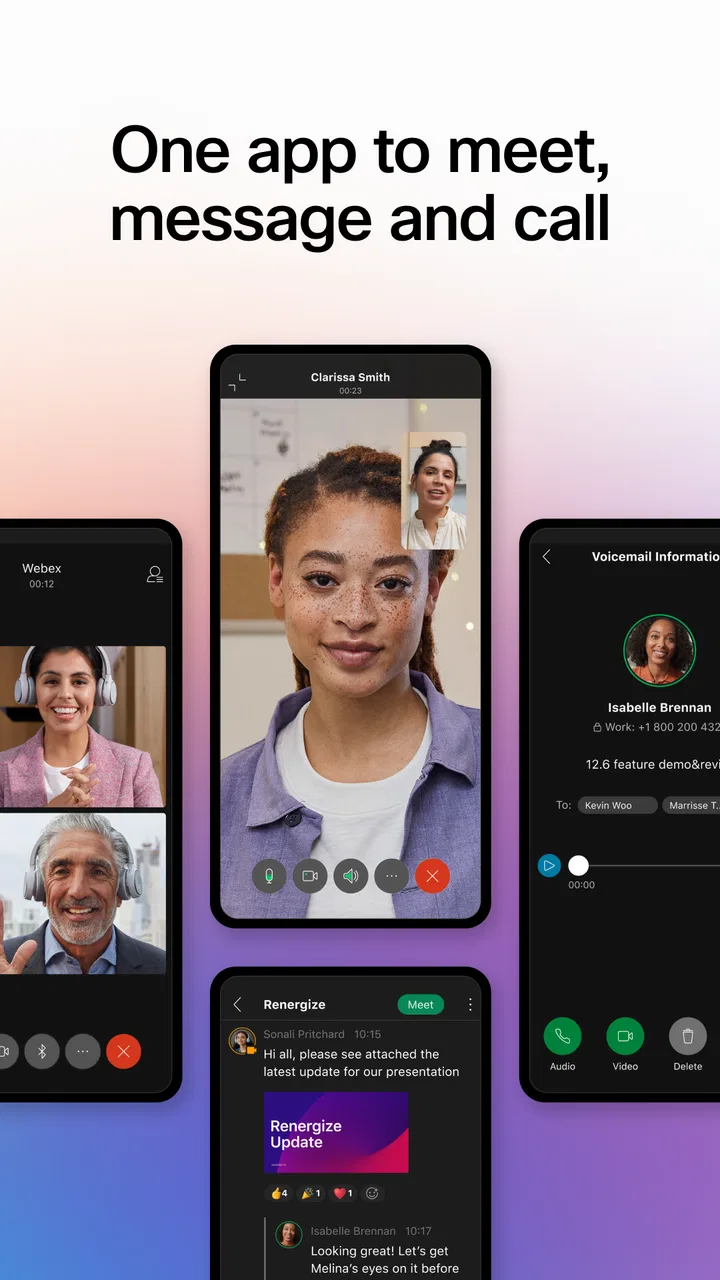
Webex Intune is the Microsoft Intune-managed version of the Webex mobile app, intended mainly for organizations that need secure access to messaging, meetings, calling, and collaboration tools on managed Android or iOS devices. It is especially useful for businesses, schools, and public-sector teams that require company security policies, controlled access, and administrative management alongside Webex communication features.
02How is Webex Intune different from the regular Webex app?
The main difference is mobile-device management rather than the core Webex experience. Webex Intune is configured to work with Microsoft Intune and related security controls, allowing an organization to apply policies such as app protection, data sharing restrictions, and account requirements. The exact features and limitations can vary depending on how an employer or administrator has configured Intune and Webex.
03Do I need a company account or administrator approval to use Webex Intune?
In most cases, yes. Webex Intune is generally deployed for organizations, so users usually need a valid work, school, or managed Webex account. Your administrator may also require enrollment in Microsoft Intune, installation of Microsoft Authenticator or the Company Portal, device compliance checks, or multifactor authentication. If your organization has not provided instructions, downloading the app alone may not be enough to sign in.
04What permissions and security controls can Webex Intune use?
Depending on your organization’s configuration, Webex Intune may request access to features such as the microphone, camera, notifications, contacts, calendar, and local network functions for calling and meetings. Intune policies can also restrict copying content, saving files, taking screenshots, opening links in unmanaged apps, or transferring work data to personal applications. These controls are set by administrators and may differ between devices.
05Can I use Webex Intune on a personal phone, and what happens to my data?
Whether a personal phone is allowed depends on your organization’s bring-your-own-device policy. With Intune app protection, administrators can often manage work data inside the app without fully managing personal content, but they may still enforce sign-in, encryption, access codes, and remote removal of company information. Before installing, review your organization’s privacy notice to understand what device information is collected and what actions administrators can perform.
Pros
- Strong enterprise security with Microsoft Intune integration
- Supports HD video meetings and clear audio on compatible devices
- Easy access to company meetings
- teams
- and shared content
- Reliable collaboration tools for distributed workforces
- Works across Android and iOS for flexible mobile access
Cons
- Requires organizational setup and an eligible Webex account
- Some features may be restricted by company policies
- Can consume significant battery during long video calls
- Performance depends heavily on network quality
- Advanced controls may feel complex for occasional users

Webex Intune
Gallery